- View missions in Usage & Credits.
- Complete different types of missions.
- Earn credits.
- Check your credit history in Usage & Credits.
- Use credits to explore more features.
Check-in
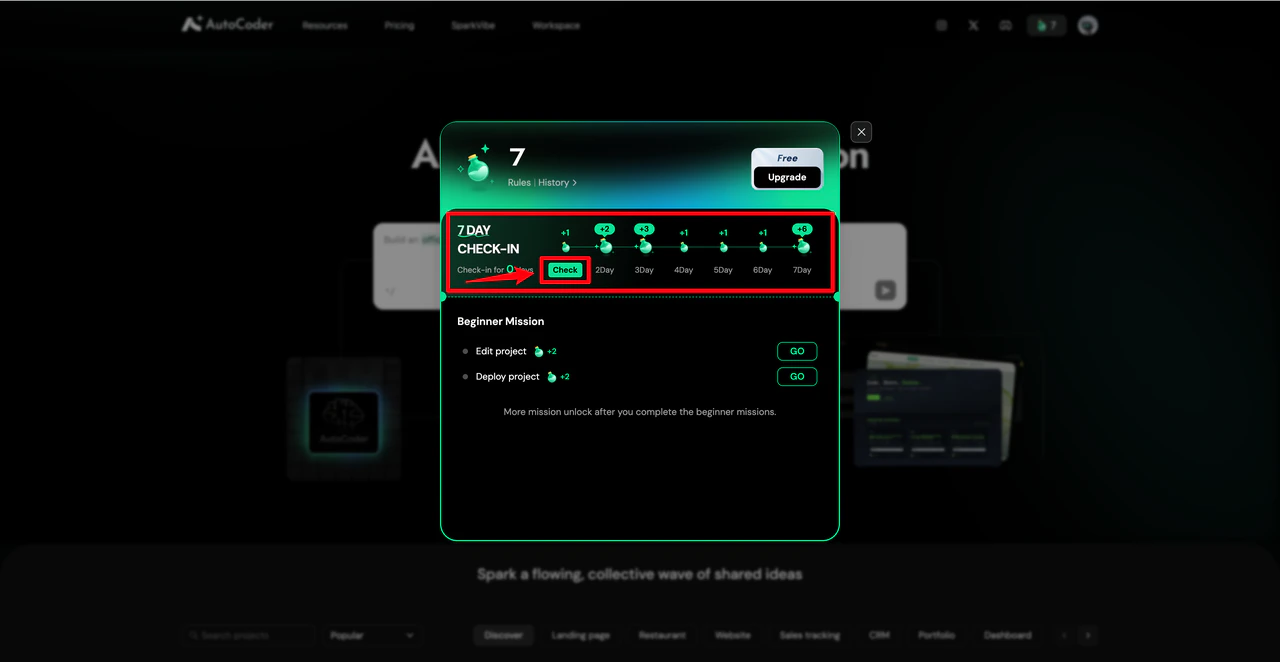
The Check-in feature allows you to sign in daily to receive system-issued reward credits. This mechanism helps you maintain consistent product usage and gradually accumulate credits.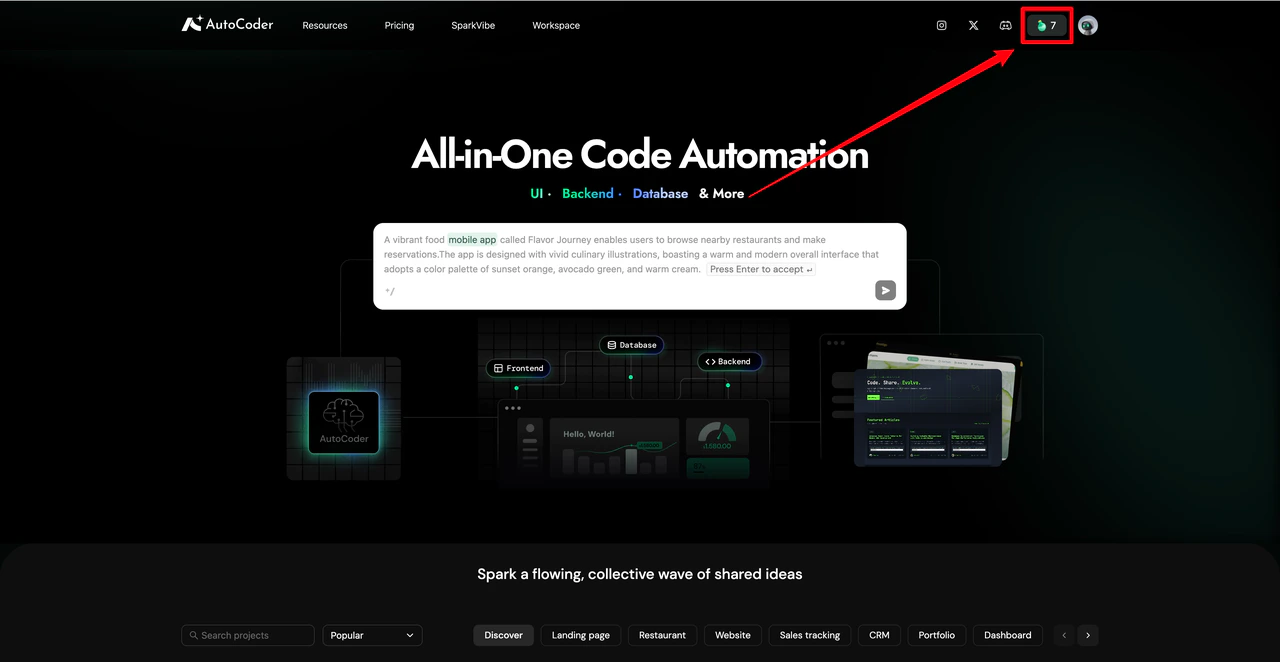
Missions
Missions guide you to experience the core features of AutoCoder.cc step-by-step. Different types of missions help you explore various product capabilities.Beginner missions
Beginner missions help you quickly familiarize yourself with basic AutoCoder.cc operations. Common missions include Create a project, Edit a project, and Deploy a project. Walkthrough: Create a project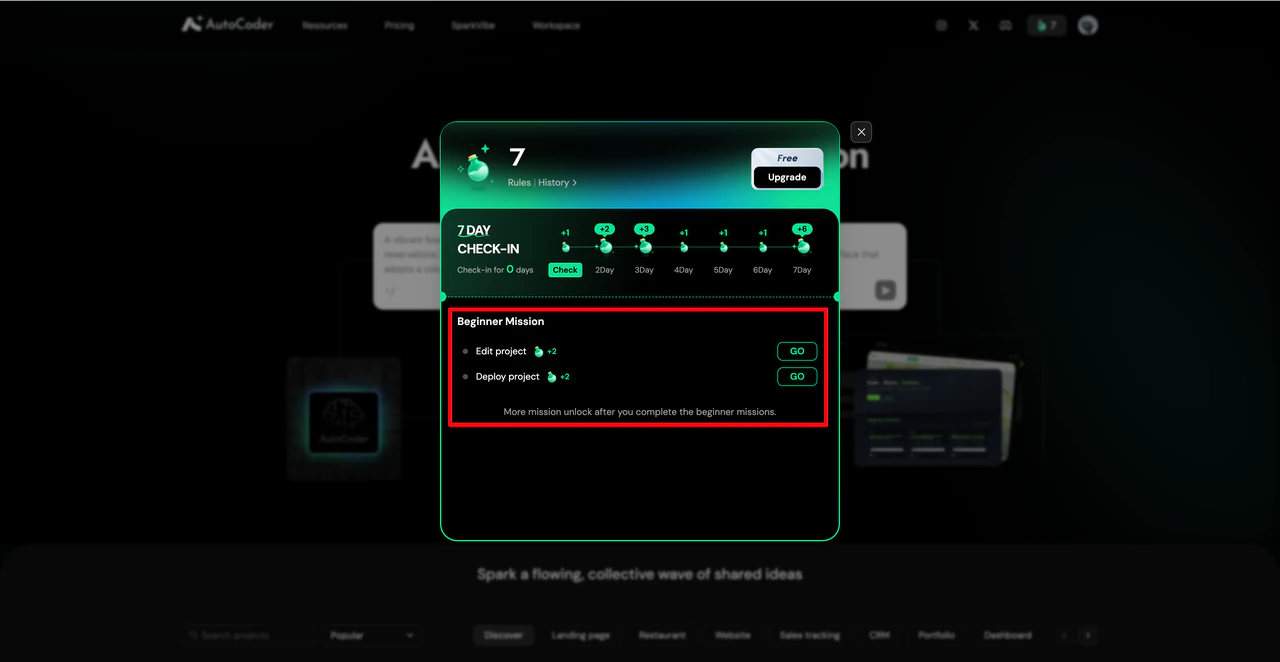
Initiate project creation
Click the Go icon to start creating a new project. Clarify your project type and input clear requirements.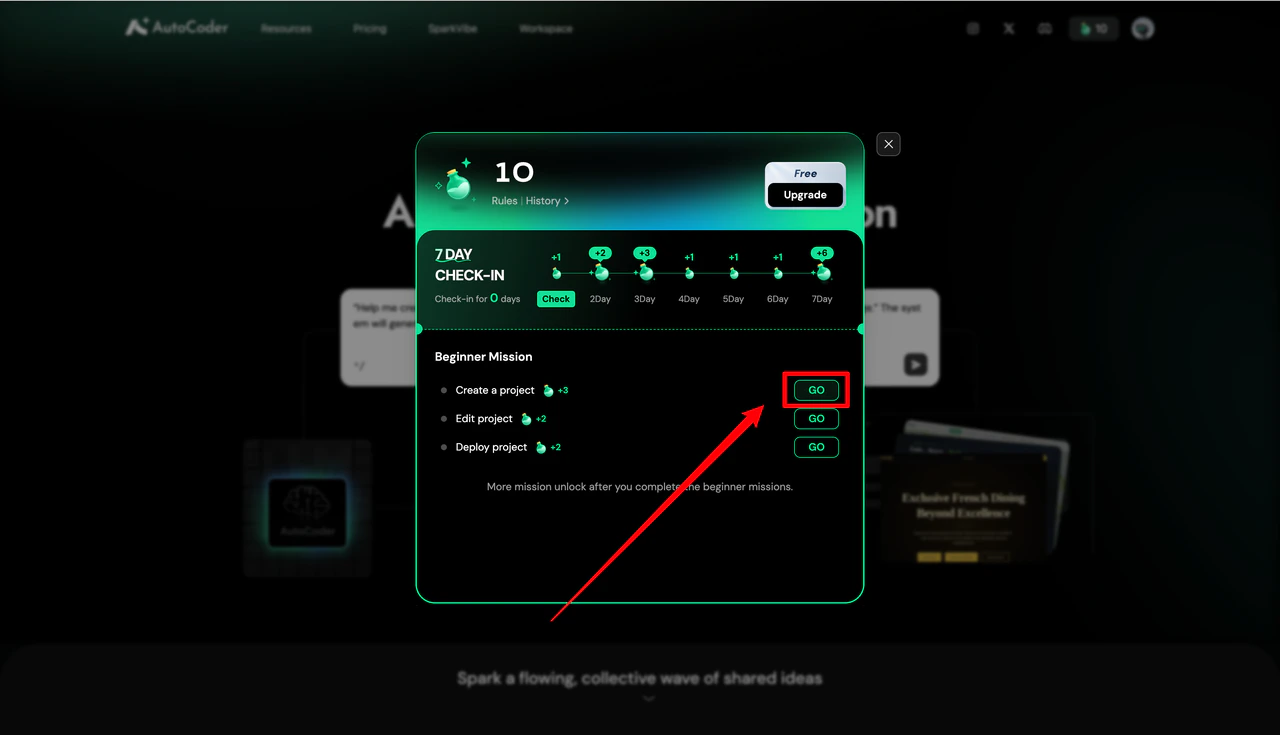
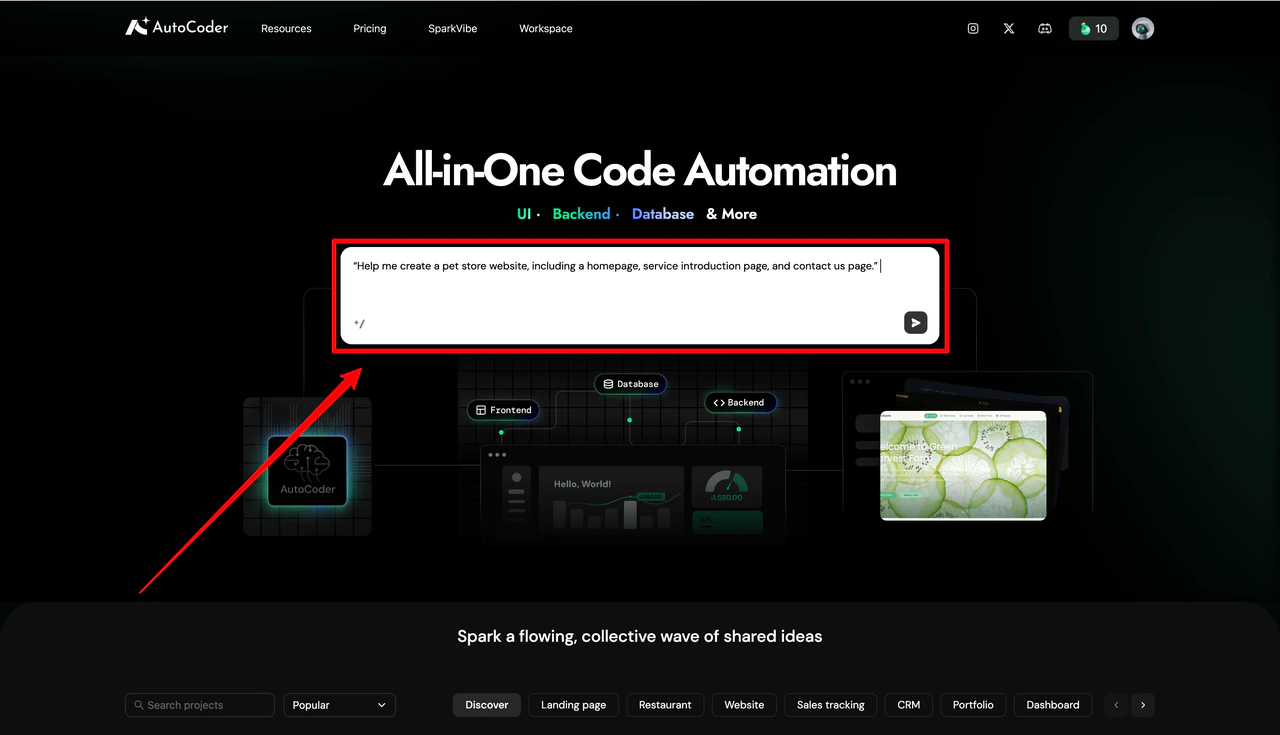
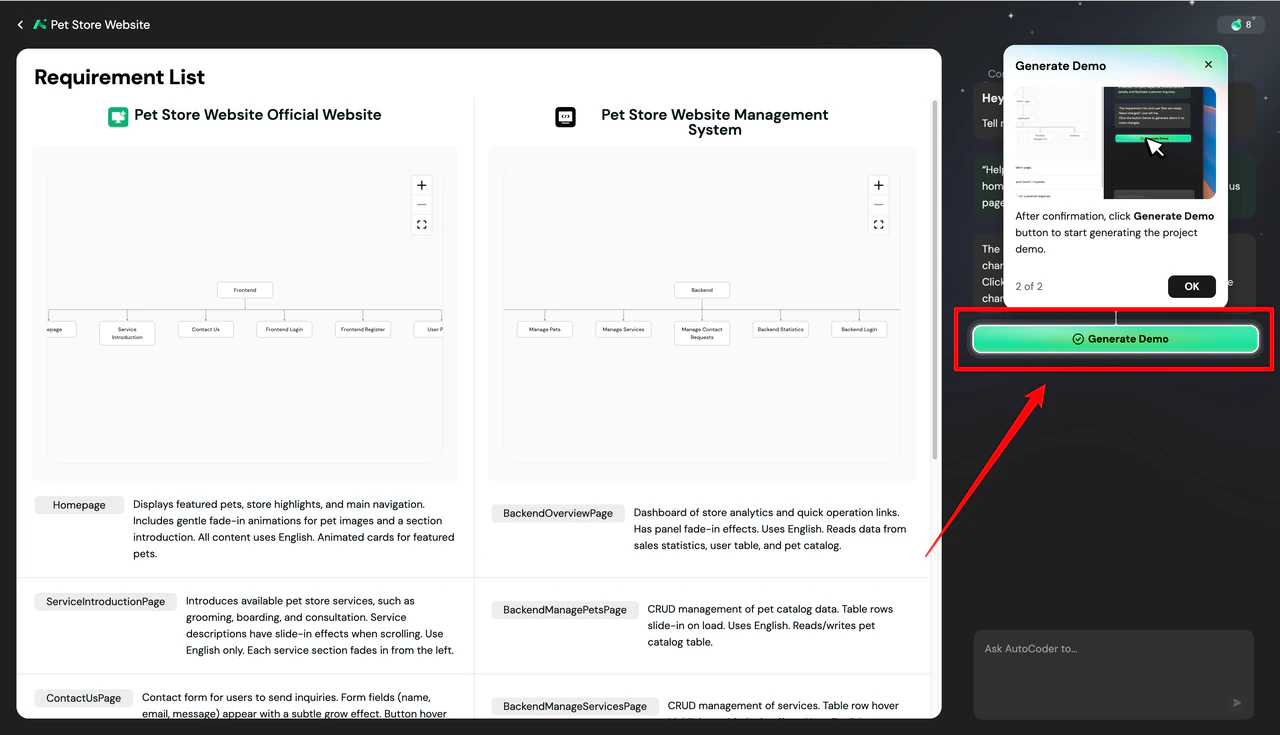
Completing all beginner missions (Create, Edit, Deploy) unlocks more advanced missions.
Daily missions
Daily missions encourage continuous use of AutoCoder.cc and community interaction. Common missions include Create or edit a project, Share a project to the community, and Like a project. Walkthrough: Like a project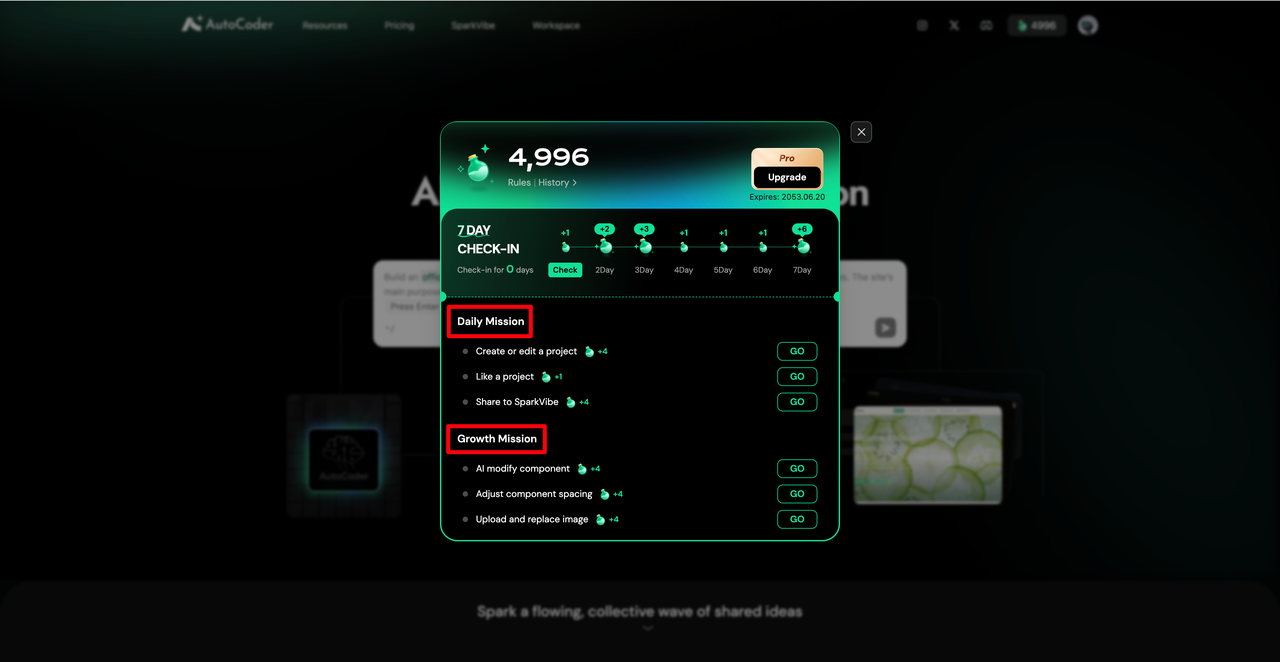
Browse SparkVibe
The system will redirect you to the SparkVibe community. Browse other users’ project demos and discover different types of applications.
Growth missions
Growth missions guide you to explore advanced AutoCoder.cc features, focusing on specific editing capabilities to improve your efficiency in building applications.AI modify component
Use AI commands to adjust page elements, such as content, layout, and component styles.
Upload & replace image
Experience page image management by uploading local files and replacing existing images.
Modify text content
Familiarize yourself with text editing by updating titles, descriptions, and page copy.
Start the mission
In Usage & Credits, locate Upload and Replace Image under Growth missions and click Go.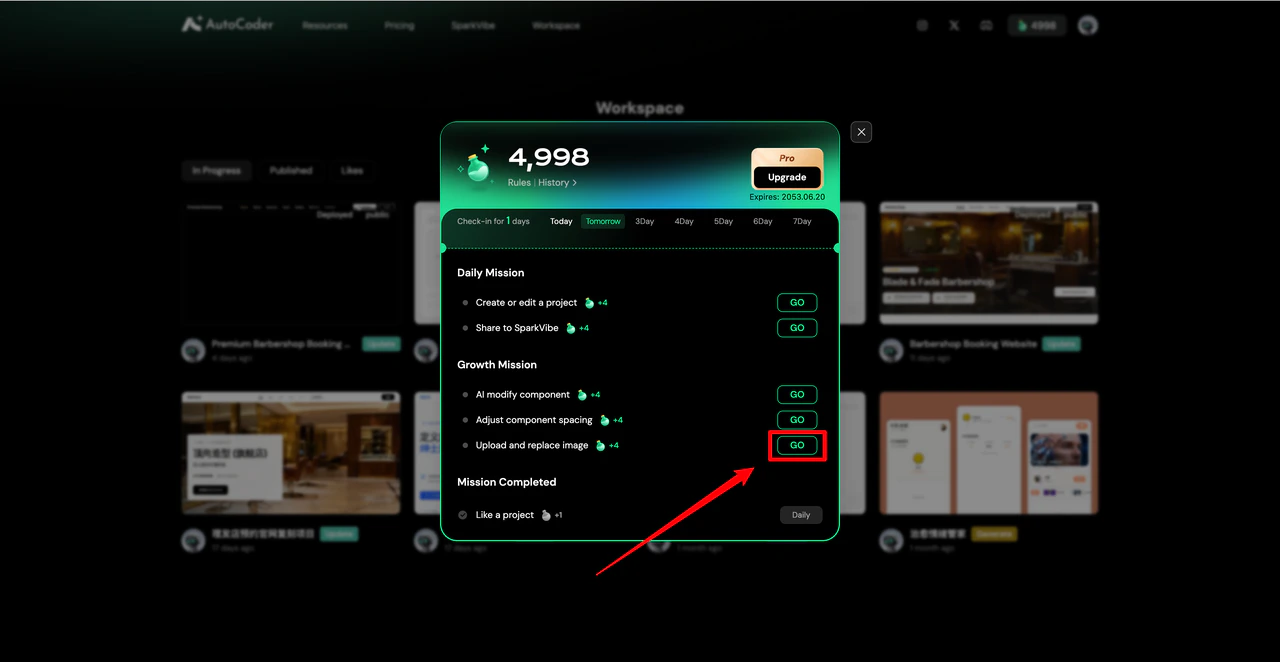
Select a project
Select the project demo you want to edit and click Confirm to enter the project page.
Enter Visual Editing mode
Click Edit in the bottom right corner of the demo page to enter Visual Editing mode.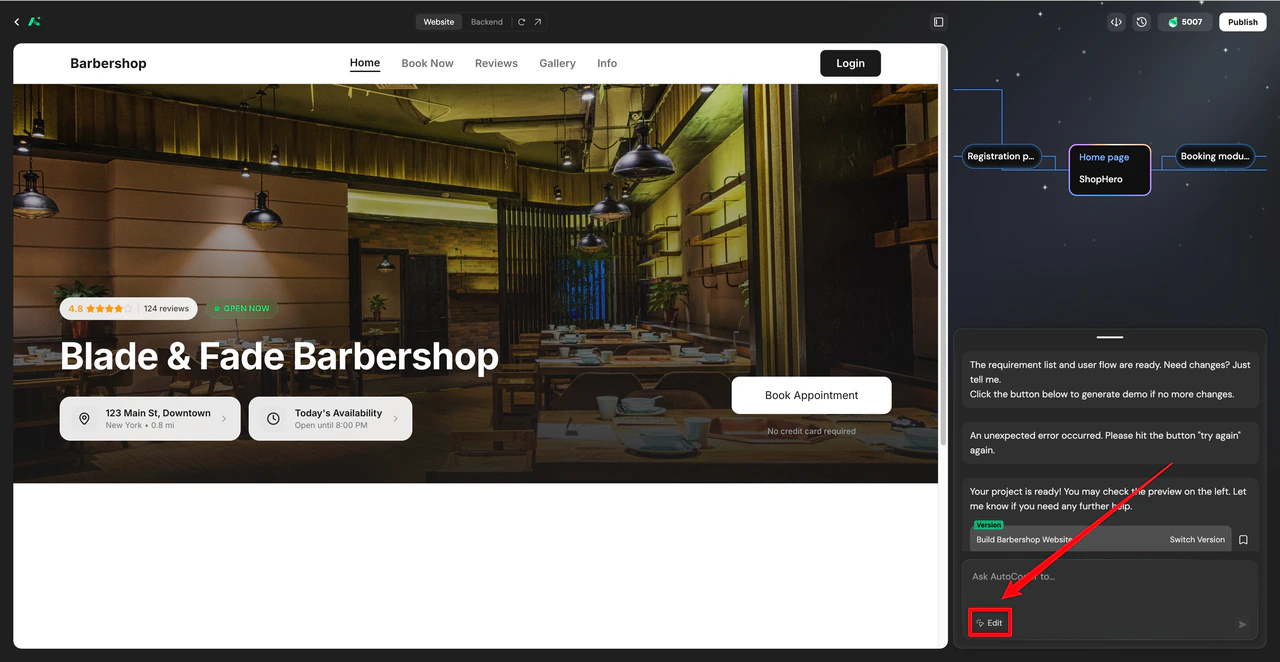
Replace the image
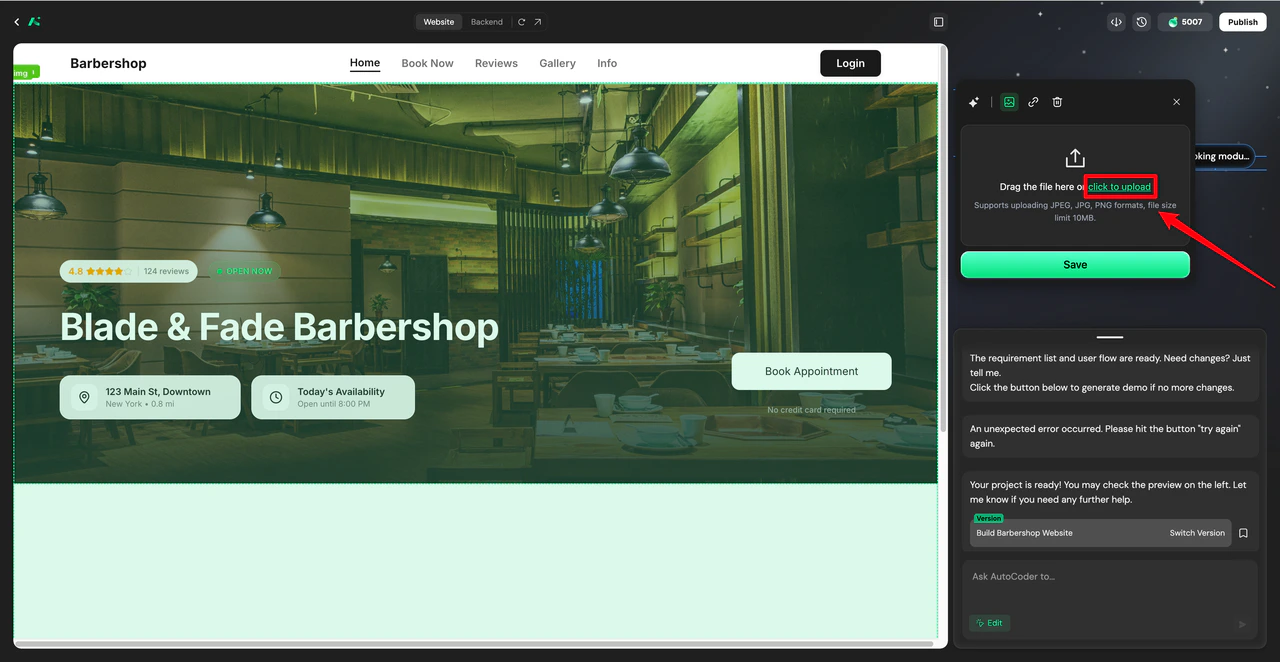
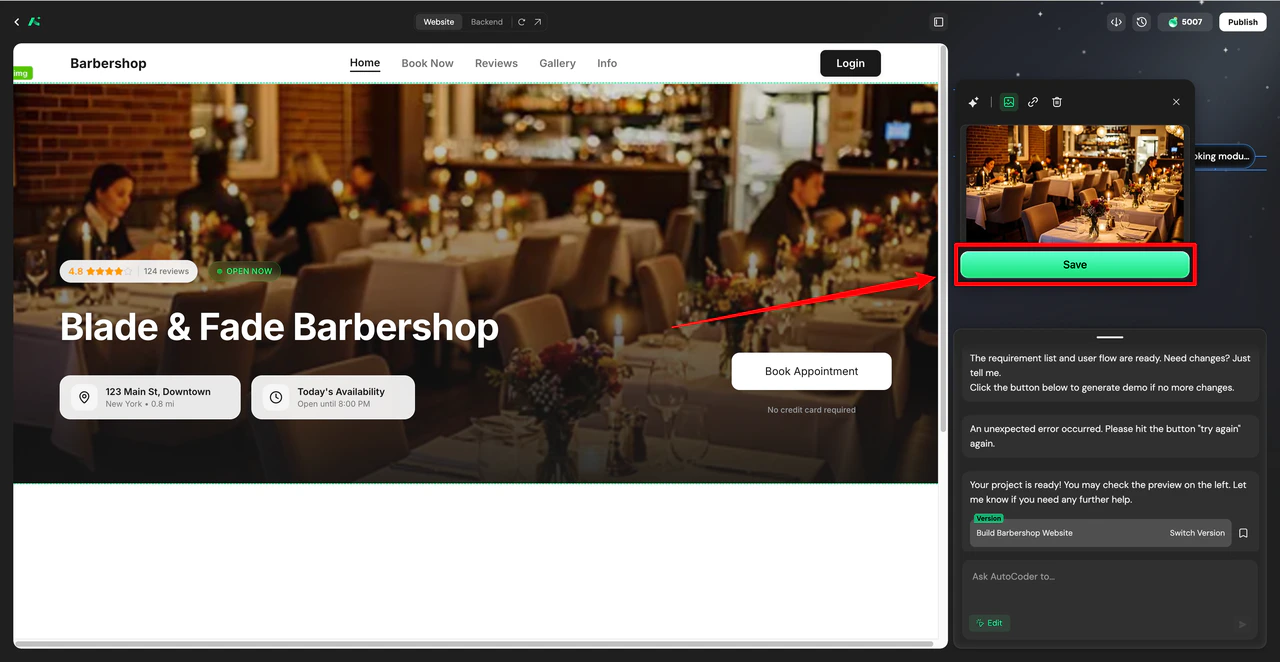
Click on an image component to open the editing panel. Click the image edit icon, then click click to upload to replace it. (Supported formats: JPEG, JPG, PNG. Max size: 10MB).