> ## Documentation Index
> Fetch the complete documentation index at: https://docs.autocoder.cc/docs/llms.txt
> Use this file to discover all available pages before exploring further.
# AI Integration
Autocoder's built-in AI connector lets you add intelligent features to your app without building an AI backend, managing API keys, or wiring up model calls yourself. Just describe what you want in natural language, and Autocoder sets up the model, backend, and billing for you.
Typical AI features you can add to your project include:
* Chatbots and in-app conversational assistants
* Generate images from text descriptions
* Automatic in-site information search
* Text generation (e.g., write product descriptions from a single sentence)
* Upload files or images and generate content from them
## Enabling AI in Your Project
Enabling AI features takes just a few steps. You can enable and set it up through the API Hub or by sending a request in the chat flow.
### Two Connection Modes
Autocoder offers two ways to connect AI to your project:
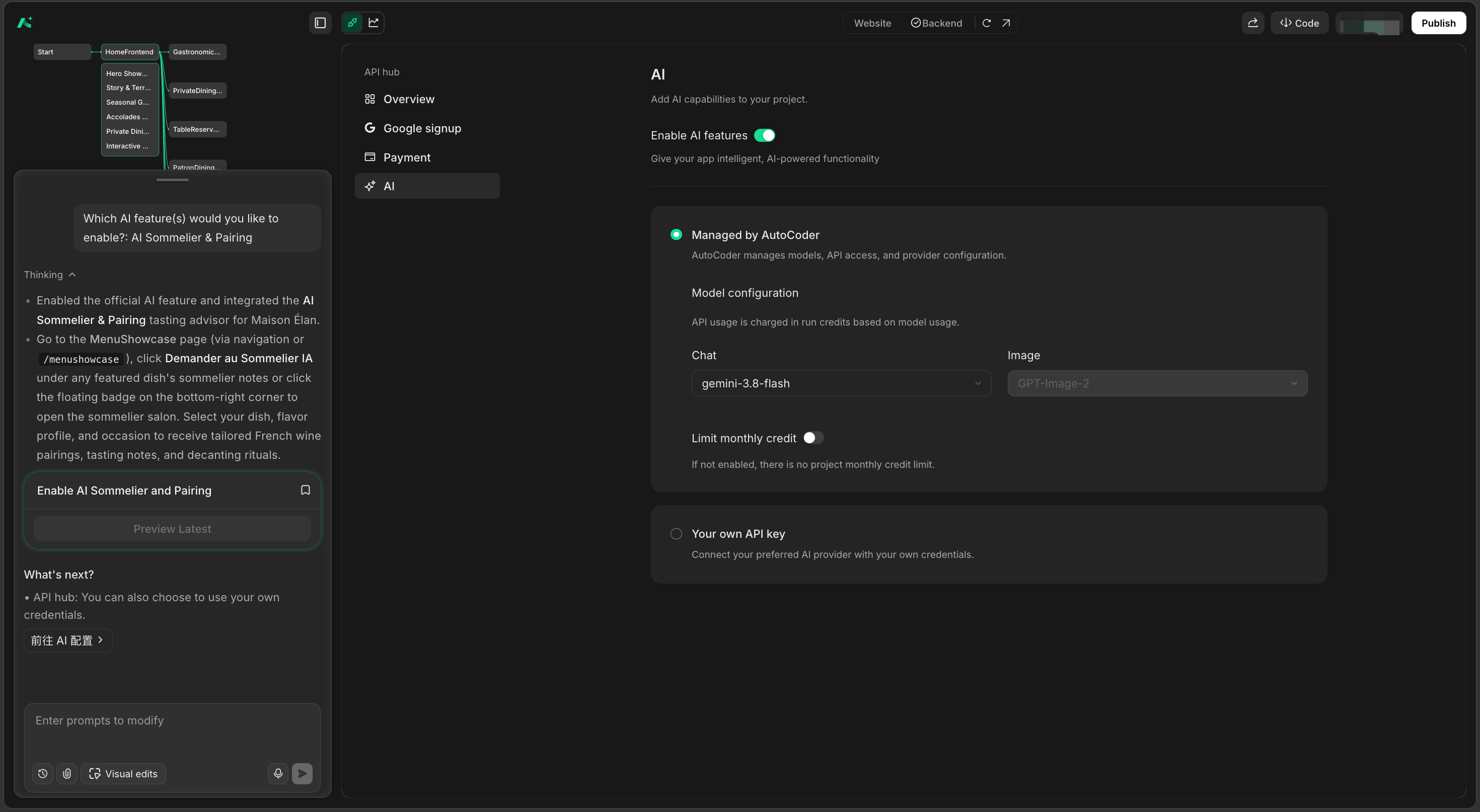
#### Managed by AutoCoder
* Default mode — Autocoder provides the model and API key; no application required
* All API usage is charged in run credits based on token usage
* Choose from available models via the dropdown selector
* Set a monthly credit limit to control your project's AI cost
 #### Your own API Key
* Bring your own API key and Base URL
* Enter your API Key, click "Fetch models", and the available model list loads automatically
* Select the model you want from the dropdown
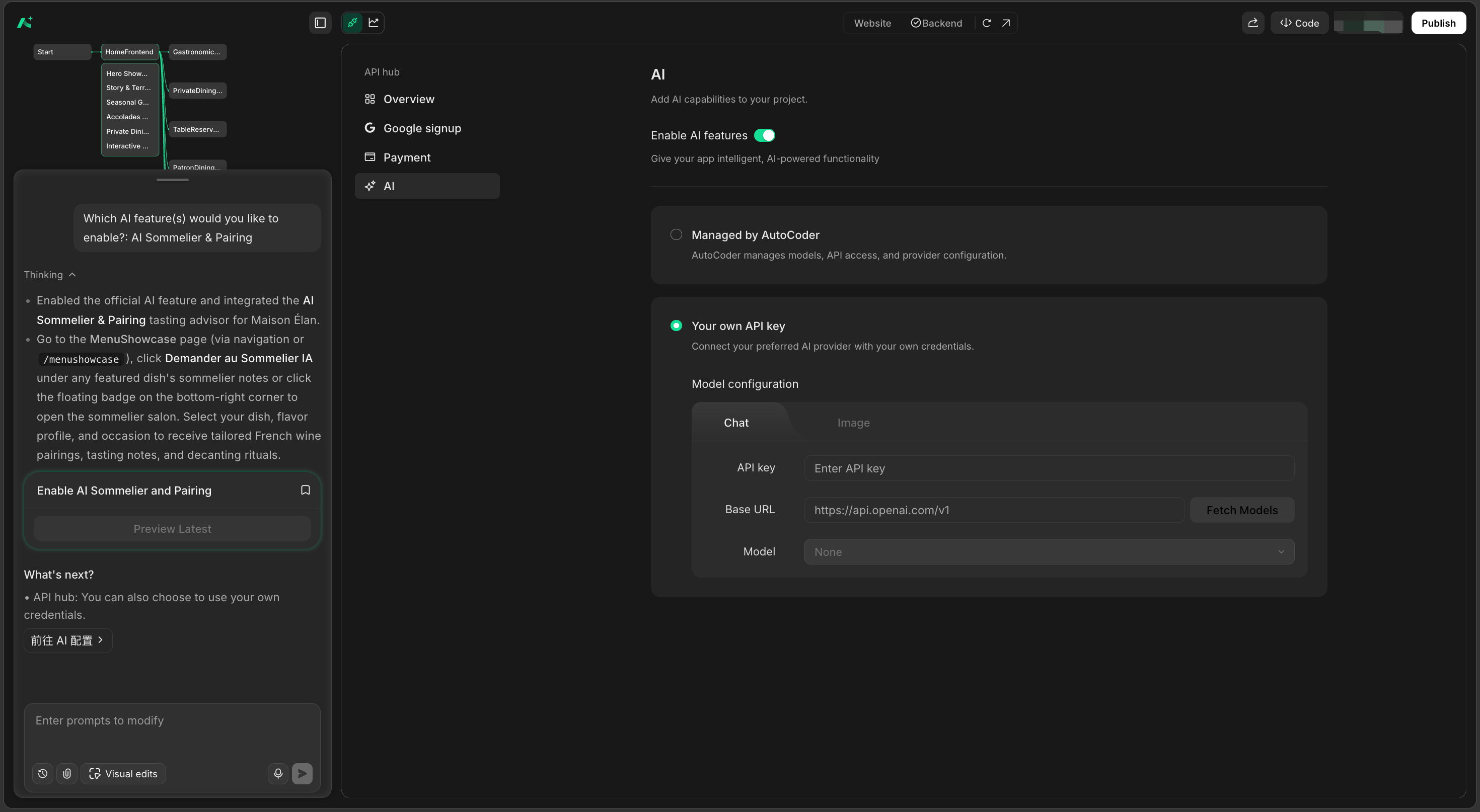
#### Your own API Key
* Bring your own API key and Base URL
* Enter your API Key, click "Fetch models", and the available model list loads automatically
* Select the model you want from the dropdown
 ### How to Enable
You can connect AI to your project in either of two ways:
#### Option 1: Describe Your Needs in Chat
This is the fastest way. You don't need to visit a settings page first — just describe the AI feature you want in the project chat, in plain language.
#### Option 2: Configure Manually from the AI Management Page
If you prefer to set up the connection mode and model first before adding AI features, follow these steps:
1. Open the AI management toggle in the project editor (initially only the toggle is shown).
2. Choose your connection mode: Managed by AutoCoder or Your own API Key.
3. If using managed mode, pick a model from the dropdown. If using your own key, enter your API Key and Base URL, then fetch the model list.
4. Configure memory storage and (optionally) a monthly credit limit.
5. Once enabled, describe the AI feature you want in chat and Autocoder builds it for you.
## Memory Storage
When configuring AI conversation features in your project, you can choose how chat memory is stored:
| Storage Mode | Description |
| - | - |
| Database | Persistently saved; accessible across devices and browsers |
| Local Browser | Stored only in the current browser |
| No Save | Cleared on refresh; kept for the current session only |
When you mention AI in your generation request, the system automatically checks for explicit AI features after the lightweight generation step and before the requirements list is generated, and prompts you to confirm the memory storage mode.
### How to Enable
You can connect AI to your project in either of two ways:
#### Option 1: Describe Your Needs in Chat
This is the fastest way. You don't need to visit a settings page first — just describe the AI feature you want in the project chat, in plain language.
#### Option 2: Configure Manually from the AI Management Page
If you prefer to set up the connection mode and model first before adding AI features, follow these steps:
1. Open the AI management toggle in the project editor (initially only the toggle is shown).
2. Choose your connection mode: Managed by AutoCoder or Your own API Key.
3. If using managed mode, pick a model from the dropdown. If using your own key, enter your API Key and Base URL, then fetch the model list.
4. Configure memory storage and (optionally) a monthly credit limit.
5. Once enabled, describe the AI feature you want in chat and Autocoder builds it for you.
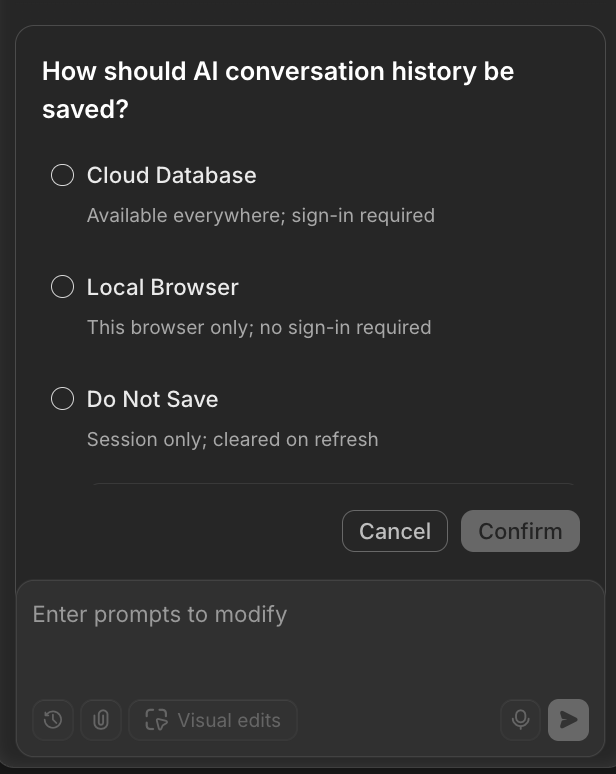
## Memory Storage
When configuring AI conversation features in your project, you can choose how chat memory is stored:
| Storage Mode | Description |
| - | - |
| Database | Persistently saved; accessible across devices and browsers |
| Local Browser | Stored only in the current browser |
| No Save | Cleared on refresh; kept for the current session only |
When you mention AI in your generation request, the system automatically checks for explicit AI features after the lightweight generation step and before the requirements list is generated, and prompts you to confirm the memory storage mode.
 ## How It Works
* Autocoder automatically generates and manages API credentials for your project — no manual key creation or maintenance.
* AI calls run through a secure backend channel; credentials and prompts stay server-side.
* AI features work in both Demo preview and published (Production) stages of your project.
* If your project is shared to Spark Vibe, AI calls are not executed for other visitors.
## Monitoring AI Usage
Autocoder provides a detailed AI analytics dashboard for each project. Access it from the project list, the sidebar recent projects, the homepage recent projects, or the analytics icon in the project editor.
### Key Metrics
The Analytics page includes a dedicated AI tab. Filter by time range:
* Time range: 1 day / 7 days / 30 days / custom
* Core metrics: credit usage, number of API requests, success rate, average response time
### Request Details
Each AI request record includes:
* The specific request content
* The AI response content
* Model used for the request
* Request timestamp
* Corresponding credit consumption
## FAQ
### Q: Does AI support RAG or Agents?
The current version does not support RAG (Retrieval-Augmented Generation) or Agent capabilities. AI calls connect only to your project's own database. If your request involves an unsupported capability, the AI will notify you and ask whether you want to continue with a text-based approach.
### Q: Does AI work in both Demo and published projects?
Yes. AI features use real model calls in both the Demo preview and the published (Production) stage. However, if your project is shared to Spark Vibe, other visitors will not trigger real AI calls.
### Q: Can I keep using AI if I run out of build credits?
Yes. AI calls consume run credits, which are completely separate from build credits. As long as you have remaining run credits, AI features continue to work.
### Q: Can I use my own model and API key?
Yes. In the AI management page, select "Your own API Key" mode, enter your API Key and Base URL, then click fetch models to load and select from your available models.
This documentation is built and hosted on [Mintlify](https://mintlify.com), a developer documentation platform.
## How It Works
* Autocoder automatically generates and manages API credentials for your project — no manual key creation or maintenance.
* AI calls run through a secure backend channel; credentials and prompts stay server-side.
* AI features work in both Demo preview and published (Production) stages of your project.
* If your project is shared to Spark Vibe, AI calls are not executed for other visitors.
## Monitoring AI Usage
Autocoder provides a detailed AI analytics dashboard for each project. Access it from the project list, the sidebar recent projects, the homepage recent projects, or the analytics icon in the project editor.
### Key Metrics
The Analytics page includes a dedicated AI tab. Filter by time range:
* Time range: 1 day / 7 days / 30 days / custom
* Core metrics: credit usage, number of API requests, success rate, average response time
### Request Details
Each AI request record includes:
* The specific request content
* The AI response content
* Model used for the request
* Request timestamp
* Corresponding credit consumption
## FAQ
### Q: Does AI support RAG or Agents?
The current version does not support RAG (Retrieval-Augmented Generation) or Agent capabilities. AI calls connect only to your project's own database. If your request involves an unsupported capability, the AI will notify you and ask whether you want to continue with a text-based approach.
### Q: Does AI work in both Demo and published projects?
Yes. AI features use real model calls in both the Demo preview and the published (Production) stage. However, if your project is shared to Spark Vibe, other visitors will not trigger real AI calls.
### Q: Can I keep using AI if I run out of build credits?
Yes. AI calls consume run credits, which are completely separate from build credits. As long as you have remaining run credits, AI features continue to work.
### Q: Can I use my own model and API key?
Yes. In the AI management page, select "Your own API Key" mode, enter your API Key and Base URL, then click fetch models to load and select from your available models.
This documentation is built and hosted on [Mintlify](https://mintlify.com), a developer documentation platform.